
Showing posts with label How to. Show all posts
Showing posts with label How to. Show all posts
Thursday, May 1, 2014
Tuesday, November 6, 2012

---------------------------------------------------------------------------------------------------------------
HotSpot Shield is the software which helps you to access any blocked website any time any where
---------------------------------------------------------------------------------------------------------------
About Hotspot Shield
- Secure your web session, data, online shopping, and personal information online with HTTPS encryption.
- Protect yourself from identity theft online.
- Hide your IP address for your privacy online.
- Access all content privately without censorship; bypass firewalls.
- Complete Wi-Fi Security at public hotspots, hotels, airports, and corporate offices.
Works on wireless and wired connections alike.
Provides Unlimited Bandwidth.
Works on the PC and the Mac, including new operating systems (Windows 7 and Snow Leopard) That‘s why AnchorFree is pleased to offer Hotspot Shield. Our application keeps your Internet connection secure, private, and anonymous.
100% Security Through a VPN
Hotspot Shield creates a virtual private network (VPN) between your laptop or iPhone and our Internet gateway. This impenetrable tunnel prevents snoopers, hackers, ISP‘s, from viewing your web browsing activities, instant messages, downloads, credit card information or anything else you send over the network. Hotspot Shield security application is free to download, employs the latest VPN technology, and is easy to install and use.So go ahead - Get behind the Shield - Try Hotspot Shield today!
Hotspot Shield runs on:
- Windows XP
- Windows Vista
- Windows 7
- Windows 8
- Mac OS X (10.5 Leopard)
- Mac OS X (10.6 Snow Leopard)
- Mac OS X (10.7 Lion)
- Mac OS X (10.8 Mountain Lion)
If you decide to uninstall Hotspot Shield at any time, please, follow the usual steps: select "Control Panel" from Start menu, click "Add or Remove Programs", highlight "Hotspot Shield" entry and click "Change/Remove" button.
Monday, September 3, 2012
2

When using Windows 7, if you receive error message "You
have been logged on with a temporary profile, You cannot access your
files and files created in this profile will be deleted when you log
off. To fix this, log off and try logging on later. Please see the event log for details or contact your system administrator". Then this post explains how easily you can fix temporary profile issue in Windows 7.
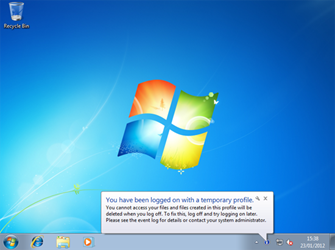
How to fix temporary profile problem in windows 7
- Log on to the system with administrative rights.
- In start menu, type regedit and press enter
- Go to the path :
“HKEY_LOCAL_MACHINE\SOFTWARE\Microsoft\Windows NT\CurrentVersion\ProfileList”.

- Now you can see similar keys under profile list with .bak difference, as shown below it.
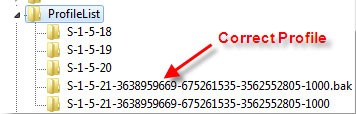
- Your original profile (correct profile) key is marked as bak. So,
rename the new profile key ( which is not having.bak) and remove .bak
from correct profile key. as shown below.
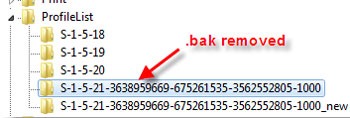
- That’s it.. Restart and login with your username and password. You must get your desktop icons and profile settings back in Windows 7.
Thursday, August 30, 2012

Sometimes big companies come with
strange ideas to their new software products that make the user somehow
shocked, that's what Microsoft done by removing the Start button which
was used during more than 18 years on Windows OS, ( Microsoft said that
the cause is : "Microsoft executives reveal that Windows users have already largely
abandoned the Start button. An increasing number rely more on pinning
favorite apps to their taskbar or simply using keyboard shortcuts to
access frequently used applications").
Samsung doesn't like that and decide to
release a widget that looks like the precedent Windows 7 start button
with same features such as the search option, user icon and installed
software, with drag and drop option.
The tool is called Samsung’s S Launcher,
and it will be first used on the next Samsung all-in-one PCs, the
question is will this widget take a place for download for all computers
? Well samsung describe the new widget for Windows 8 like seeing an old
friend in a new country - it’s very reassuring.
And of course, the S Launcher is also a launcher. Simply drag apps or files to it for easy access, tossing them off when you don’t want them anymore. Nothing groundbreaking in that, but it doesn’t hurt, either, and the icons are bigger than in the Windows taskbar.
Samsung’s S Launcher widget screenshots :


Wednesday, August 29, 2012
This is a crazy App from Samsung that
can launch at any time and you must wait until start to close it,
personally hate this Voice Talk feature and the strange thing is that
Samsung doest even want to add a small option to disable it if the user
want to even on the latest ICS, it's like they say "use this app now" ,
any ways we don't like to wait for anyone to control what we bought with
our money specially if the device is for our everyday use, so I decide
to post this tutorial just for help you guys and get rid of this mad
Samsung application, bellow a step by step easy and safe method.
Update: If
your Galaxy S2 or S3 is running Android 4 ICS, then just follow our new
easy tutorial on how to remove Voice talk application over here, if you still using Android 2.x.x just continue on this tutorial.

First of all you must root your device
so you will have all permission to modify or delete system applications,
if your Samsung galaxy S2 is not rooted don't loose your time searching
for a solution without rooting, you'll find nothing, so to root your
Galaxy S2 smartphone you need to follow some very easy steps on our
article How to root Galaxy s2.
After a successful rooting steps, now
you just need to download a small application into your Samsung galaxy
S2 from the Google Market, you can chose between these two apps, "AntTek
App" or "Root Uninstaller", in my case I tried AntTek App and it worked fine, so search for it on the Market and download it.
Download AntTek App via QRcode :

After installing the application, open AntTek App and
go to Apps tab then search for this apps "Voice commander" or "Voice
Talk" tap it and chose Freeze to freeze the application or chose delete
to delete the Voice talk feature forever from your device, note that
with the freeze option you can restore the Voice talk feature back again.
You're now done and the Voice Talk feature is gone forever, no more head
ache when you press the center button two times, this method also work
for other Samsung smartphone models.
If you have any problem or comment please don't hesitate to write down.
If you like this article, please share it on facebook, tweet it and +1 it to spread it :) !
Saturday, August 18, 2012
I wrote this article because most of people trying to unlock
their HSDPA modem,because some modem s works for just
1 network.after unlock you can use any networks. It takes
just few seconds to unlock your modem
1. Unlock Huawei HSDPA modems
 When
we put some other network sim card it will ask some code.So im going to
generate that code.It is easy.first of all you have to find your IMEI
of mode.it will mention on your modem or modem box its 15 digit.now
follow this.
i. Paste this below address to your address bar.
ii. Now replace your Huawei modem IMEI number with your IMEI number like below
iii. Press Enter key,after you will see like this
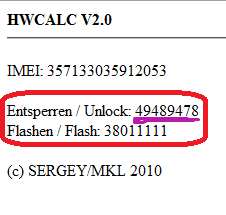
iv. Now enter this unlock code when it ask the code. you are done.
2 . Unlock ZTE HSDPA modems

Some ZTE modems not asking unlock code.so no where to input our code.
so you can't do it like above method.you have to use some software for this.
Download software click here
i. First of all, if you use some memory card, remove it. remove sim card
and put sim card what you want to unlock.(it will display invalid sim)
ii.Plug your modem in to your computer,sometime connection manager will display,close it.
iii. Unzip what you download and open dccrap.exe

iv. First select the manufacture as ZTE datacards ( No: 1)
v. Select the model as Auto detect (recommended) (No : 2 ) If you know the model and
which com port you use.u can do that way also
vi. Click find button (No: 3) . after your modem model will display below box
vii. After detect modem click unlock button (No: 4 )
cheers you are done.After few seconds modem will unlock restart your computer and use
your modem.This connection manager also working for this.
But if you want to use ZTE connection manager click below link to download.
click here to download.
Thank you.
their HSDPA modem,because some modem s works for just
1 network.after unlock you can use any networks. It takes
just few seconds to unlock your modem
1. Unlock Huawei HSDPA modems

i. Paste this below address to your address bar.
http://bb5.at/huawei.php?imei= your Huawei modem IMEI number
ii. Now replace your Huawei modem IMEI number with your IMEI number like below
http://bb5.at/huawei.php?imei=357133035912053
iii. Press Enter key,after you will see like this
iv. Now enter this unlock code when it ask the code. you are done.
2 . Unlock ZTE HSDPA modems

Some ZTE modems not asking unlock code.so no where to input our code.
so you can't do it like above method.you have to use some software for this.
Download software click here
i. First of all, if you use some memory card, remove it. remove sim card
and put sim card what you want to unlock.(it will display invalid sim)
ii.Plug your modem in to your computer,sometime connection manager will display,close it.
iii. Unzip what you download and open dccrap.exe

iv. First select the manufacture as ZTE datacards ( No: 1)
v. Select the model as Auto detect (recommended) (No : 2 ) If you know the model and
which com port you use.u can do that way also
vi. Click find button (No: 3) . after your modem model will display below box
vii. After detect modem click unlock button (No: 4 )
cheers you are done.After few seconds modem will unlock restart your computer and use
your modem.This connection manager also working for this.
But if you want to use ZTE connection manager click below link to download.
click here to download.
Thank you.
Subscribe to:
Posts (Atom)


